
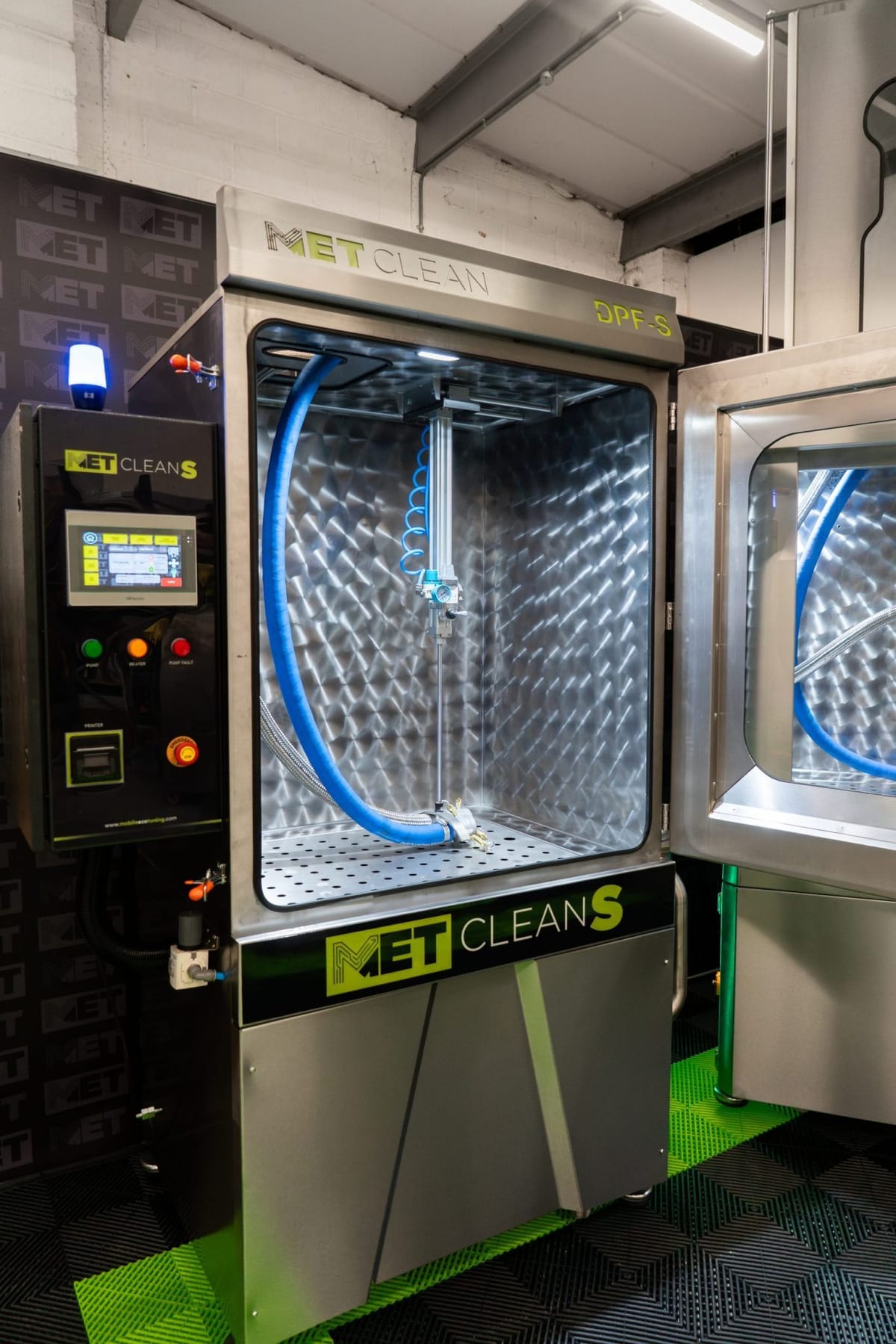
Who this guide is for
For trained operators using the screen layout shown. The film describes the S, XL and XL Multi+; Door Up and Door Down apply to XL machines only. Ask MET to confirm the guide for your machine if the layout or functions differ.
The METClean control screen, explained
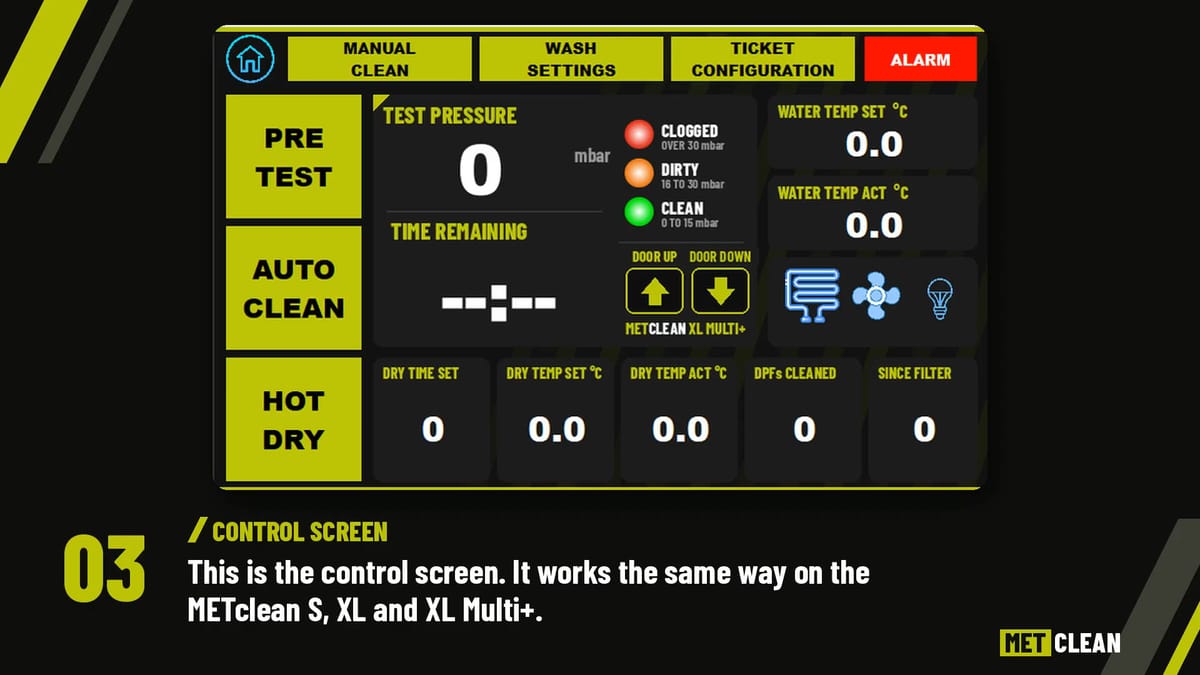
This MET walkthrough introduces the status screen, the manual controls, wash and drying settings, customer ticket information, alerts, counters and pre-test functions, before showing Auto Clean and Hot Dry.
Nothing loads from YouTube until you press Play; the film then plays in YouTube’s privacy-enhanced mode, and YouTube may store cookies (cookie policy). Watch on YouTube
Written guide
What can you do from the control screen?
The screens group the controls by task. Wash settings cover the stages of the cleaning programme. Ticket configuration holds the company, operator and customer details used for the job. The alerts page records alarms, while the status display shows information about the programme as it runs.
The film also shows the pre-test and filter-condition entries used with the customer report. Read the pre-clean inspection reporting guide for an explanation of what that report records.
Where each control is
- Status screen
- Shown when the machine is idle: its status, the time remaining, the temperature and the number of DPFs cleaned. Touch the screen to continue to the controls.
- Support
- A QR code on the status and support screens opens MET’s support pages, with how-to videos, manuals and technical documents.
- Manual Clean
- Runs each part of the machine by hand: the water pump, the water flow and the high-pressure air. Water Pump switches the pump on, and no water flows until Water Flow is pressed as well.
- Wash Settings
- The timing for each part of the clean: the pre-test, the soft start (a gentler flow at the start, to protect the DPF), the wash cycle, the cavitation bursts and the gaps between them, and the cold dry.
- Ticket Configuration
- The company, operator, customer, test number and customer email that go on the printed ticket and the emailed report. Saved customers appear as you start typing a name; tap one to fill in the name and email.
- Alarm
- Opens the alerts page, with the history of alarms the machine has raised.
- Water and cabinet
- The water temperature you set and the actual temperature, the tank heater button, and the cabinet fan and light.
- Drying
- How long drying runs and the drying temperature you set, beside the actual drying temperature while the machine dries.
- DPF counters
- DPFs cleaned is the machine’s lifetime total and can’t be changed. Since filter counts the DPFs cleaned since that counter was last reset; hold your finger on it for three seconds to reset it.
- Pre Test
- Tests the DPF’s back pressure before cleaning. Tick the condition you found (AdBlue contamination, oil contamination, a blown flexi), choose whether to email the report to the customer, and press Test. A light then shows whether the filter reads clean, dirty or clogged.
- Auto Clean and Hot Dry
- Start the automatic clean or the hot dry. As soon as either starts, the time remaining counts down on the screen.
- Door Up and Door Down
- On XL machines only. They work once the safety button has been pressed.
Find the control or setting you need
Each chapter starts the film at that point. Without JavaScript, the link opens the film on YouTube at the same moment.
- 0:00 Screensaver and machine status
- 0:40 Support and how-to guides
- 0:51 Control screen and XL door controls
- 1:13 Manual Clean controls
- 1:41 Wash settings
- 2:25 Ticket configuration and saved customers
- 3:08 Alerts and alarm history
- 3:22 Water temperature, tank heater, fan and light
- 3:46 Drying settings
- 4:01 DPF counters
- 4:14 Pre-test and DPF condition
- 5:05 Auto Clean, Hot Dry and countdown
Before changing a setting
Follow the training and operating instructions supplied for your machine. The values visible in the demonstration are not a universal setup for every filter or software version. If a control or alarm is unfamiliar, ask MET for help with your model, serial number and a screen photograph.
Common questions
Which METClean machines does this control-screen guide cover?
The film describes the control screens on the METClean S, the earlier XL and the METClean XL Multi+. Door Up and Door Down are for XL machines only. Confirm the guide with MET if your screen layout differs.
Where do I enter customer details for a DPF test report?
In Ticket Configuration, which starts at 2:25 in the video. The pre-test and filter-condition section starts at 4:14. Read the pre-clean inspection reporting guide for the purpose and content of the report.
Why does my METClean screen look different?
Screen layout and functions depend on the machine and software version. Send MET a photograph of your screen with your model and serial number so the team can identify the appropriate instructions.
Screen not as shown?
Send MET your model, serial number and a photograph of the screen, and we’ll point you to the right instructions for your machine.